
Quick Start
This guide walks you through syncing your first conversation and viewing it in the archive. It takes about two minutes.
Step 1: Go to a supported platform
Section titled “Step 1: Go to a supported platform”Navigate to any supported AI platform in Chrome. For this guide, we’ll use ChatGPT, but the flow is identical for Claude, Gemini, and all other supported platforms.
Open a conversation that you’d like to save. It can be any conversation — ongoing or completed.
Step 2: Click the HAEVN icon
Section titled “Step 2: Click the HAEVN icon”Click the HAEVN icon in your Chrome toolbar (the eye/wave logo). A small popup will appear.
On a supported platform, the popup shows:
- The title of the current conversation
- Whether it has been synced before (SYNCED / UNSYNCED)
- A Sync button to save it now
Step 3: Click Sync
Section titled “Step 3: Click Sync”Click the SYNC button. HAEVN will capture the full conversation — messages, images, code blocks, and any other content — and save it to your local archive.
The button will briefly show a loading state, then confirm the sync is complete.
Step 4: Open your archive
Section titled “Step 4: Open your archive”Click the Archive button in the popup (or right-click the HAEVN icon and choose Options).
The archive opens in a new tab, showing all your synced conversations:
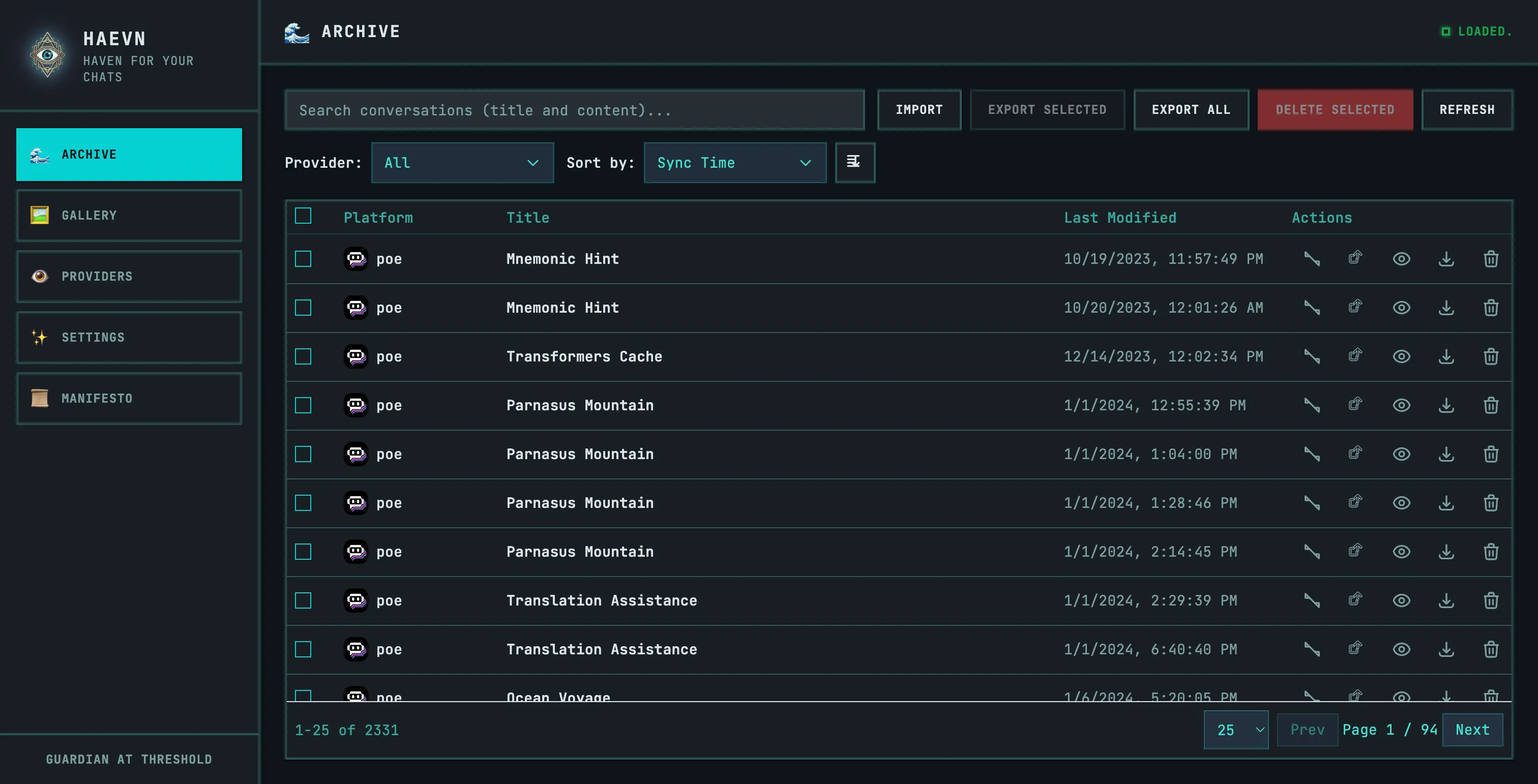
Your newly synced conversation will appear at the top of the list.
Step 5: Read it in the viewer
Section titled “Step 5: Read it in the viewer”Click Open in Viewer on any conversation. The viewer opens in a new tab and renders the full conversation with proper formatting:
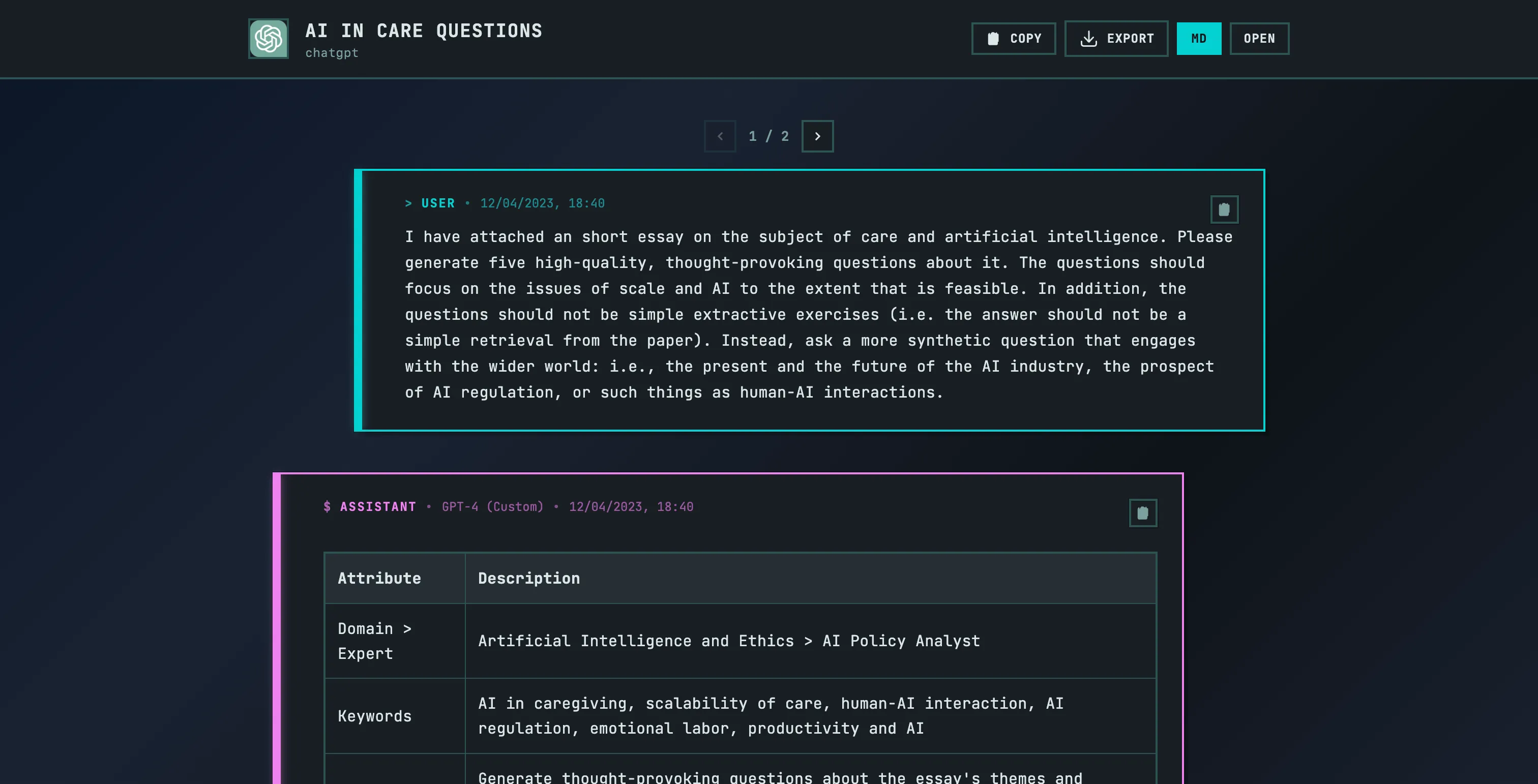
The viewer supports markdown, code syntax highlighting, images, thinking blocks, and tool calls — exactly as they appeared in the original platform.
What’s next?
Section titled “What’s next?”Now that you’ve synced your first conversation, here are some things to try: