
Gallery
The Gallery collects every image and media file from across your entire archive and displays them in a visual grid — regardless of which platform they came from or which conversation they were in.
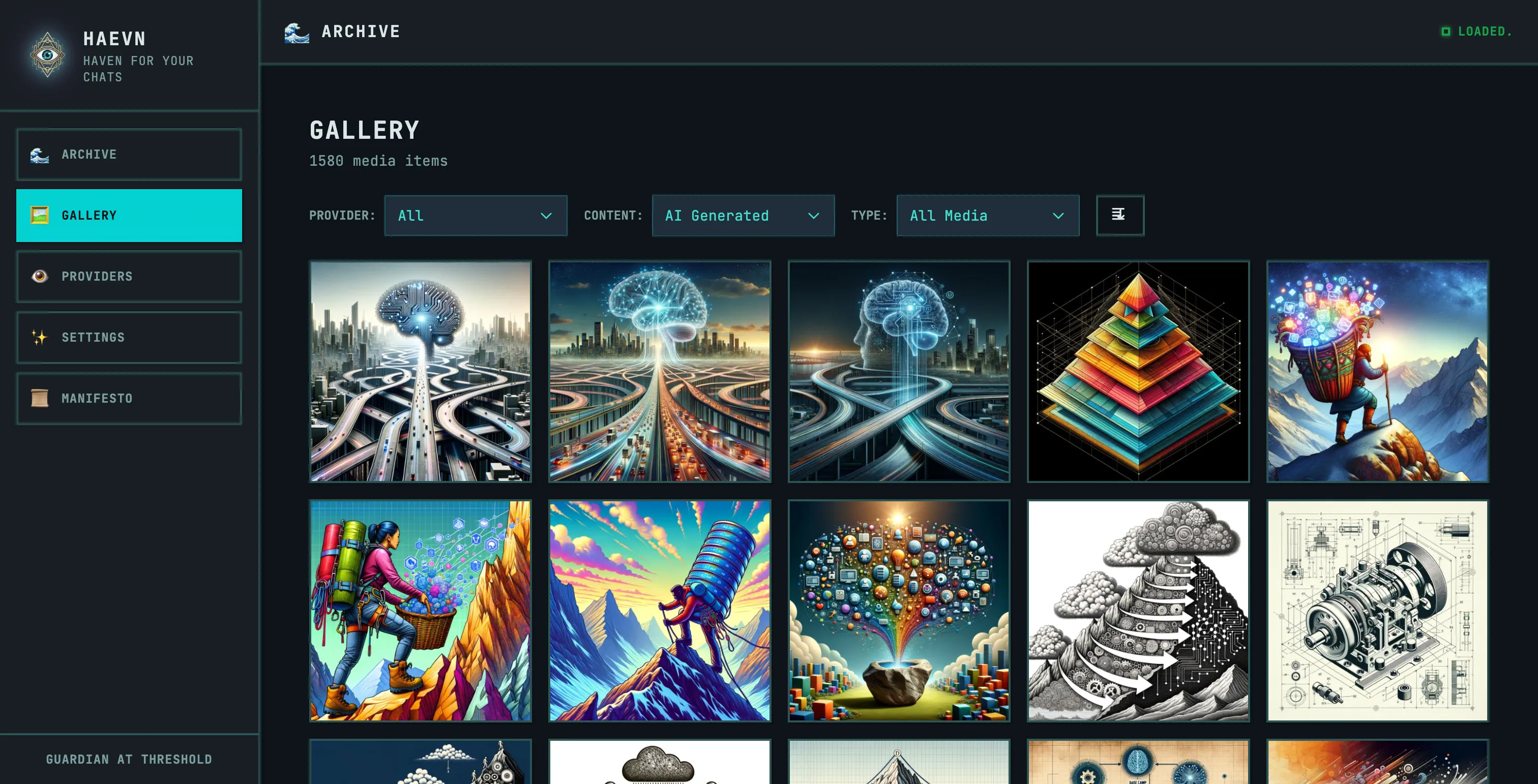
What appears in the gallery
Section titled “What appears in the gallery”The gallery includes:
- AI-generated images — images produced by models like DALL-E, Midjourney integrations, and Gemini Imagen
- User-uploaded images — images you shared in conversations
- Documents and attachments — PDFs and other files you or the model shared
Filtering
Section titled “Filtering”Use the filter controls at the top of the gallery to narrow the view:
- Provider — show media only from a specific platform
- Content — filter between AI-generated content and user uploads
- Type — filter by media type (images, documents, audio, video)
Click the reset button (the icon at the end of the filter row) to clear all filters.
Viewing media details
Section titled “Viewing media details”Click any thumbnail to open the media detail view. This shows:
- The full-size image or file
- Which conversation it came from
- Which message it was attached to
- A link to open that conversation in the Viewer
Storage
Section titled “Storage”All media files are stored in your browser’s Origin Private File System (OPFS) — a sandboxed local file system that’s separate from IndexedDB. This allows HAEVN to store large media files without hitting the browser’s storage quota.
You can check how much storage your media is using via the browser console on the Options page:
haevnDebug.opfs.usage()