
Managing Your Archive
The Archive is your central view for all synced conversations. Open it by clicking Archive in the HAEVN popup, or by right-clicking the extension icon and choosing Options.
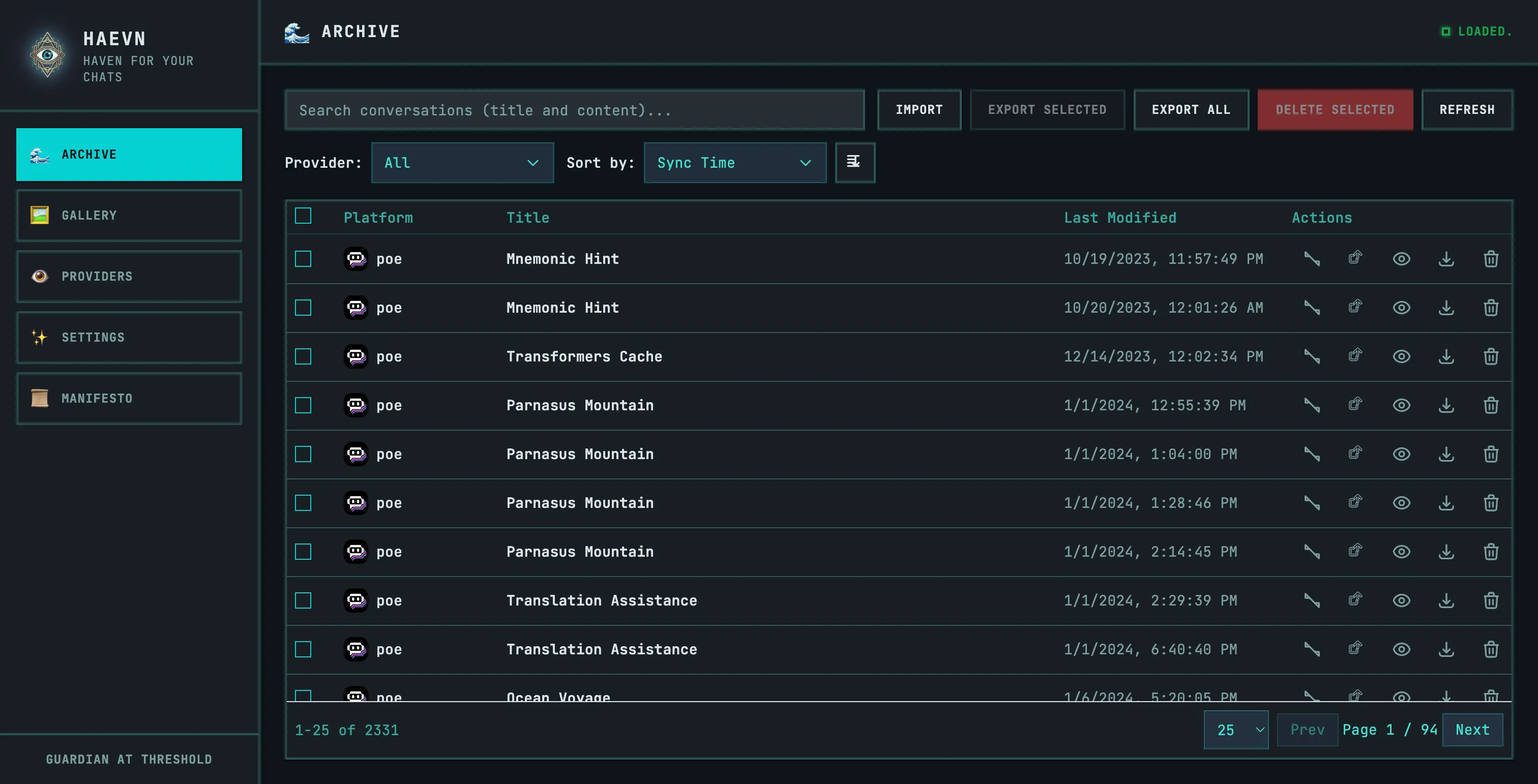
Browsing conversations
Section titled “Browsing conversations”The archive lists all your synced conversations in a table. Each row shows:
- Platform icon — which AI service the conversation came from
- Title — the conversation title as it appears on the platform
- Last Modified — when the conversation was last updated
- Actions — per-conversation buttons (described below)
Use the pagination controls at the bottom to navigate between pages. You can change the number of rows shown per page (10, 25, 50, or 100).
Sorting and filtering
Section titled “Sorting and filtering”Sort by: Use the Sort dropdown to order conversations by:
- Sync Time (default) — most recently synced first
- Title — alphabetical
- Last Modified — by the conversation’s last activity
Filter by platform: Use the Provider dropdown to show only conversations from a specific platform (ChatGPT, Claude, Gemini, etc.).
Per-conversation actions
Section titled “Per-conversation actions”Each row has four action buttons:
| Button | What it does |
|---|---|
| Sync Now | Re-syncs the conversation to pick up new messages |
| Open at Provider | Opens the original conversation on the source platform |
| Open in Viewer | Opens the conversation in HAEVN’s built-in viewer |
| Export | Downloads this conversation as a JSON or Markdown file |
| Delete | Removes the conversation from your archive |
Bulk actions
Section titled “Bulk actions”You can act on multiple conversations at once:
-
Select conversations using the checkboxes on the left of each row. Use the checkbox in the header row to select all conversations on the current page.
-
Once one or more are selected, the Export Selected and Delete Selected buttons activate in the toolbar.
-
Click Export Selected to download the selected conversations as a ZIP file (choose JSON or Markdown format in the dialog).
-
Click Delete Selected to remove all selected conversations from the archive.
Refreshing the view
Section titled “Refreshing the view”If you’ve just completed a sync or import and the archive isn’t showing the latest data, click the Refresh button in the toolbar to reload the list.