
AI Metadata
HAEVN can automatically generate rich metadata for every chat in your archive — titles, descriptions, synopses, categories, and keywords — using any OpenAI-compatible LLM, including local models via Ollama or LM Studio.
What metadata is generated
Section titled “What metadata is generated”For each chat, the AI produces:
| Field | Description |
|---|---|
| Title | A concise, descriptive title (better than raw platform titles) |
| Description | One-sentence summary of the conversation |
| Synopsis | A paragraph-length overview |
| Categories | One or more topic tags from your configured list |
| Keywords | Free-form terms for search and filtering |
-
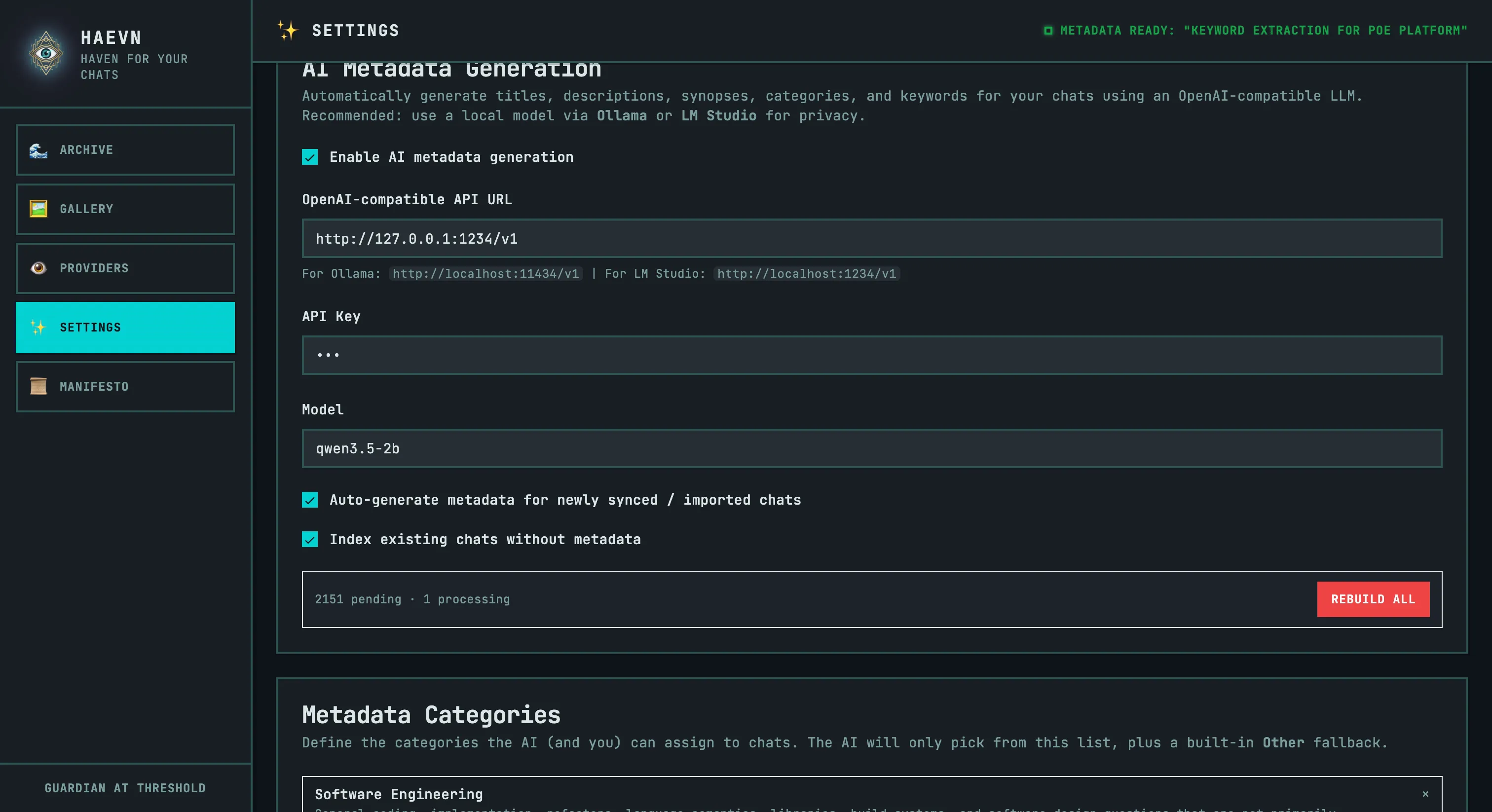
Open HAEVN Settings (right-click the extension icon → Options → Settings).
-
Scroll to AI Metadata Generation and check Enable AI metadata generation.
-
A warning dialog explains the privacy implications (your chat excerpts leave HAEVN to reach the LLM endpoint). Acknowledge it to continue.
-
Enter your OpenAI-compatible API URL:
- Ollama (local):
http://localhost:11434/v1 - LM Studio (local):
http://localhost:1234/v1 - OpenAI:
https://api.openai.com/v1
- Ollama (local):
-
Enter your API Key (leave blank for local models that don’t require one).
-
Enter the Model name (e.g.
qwen3.5-2b,llama3.2,gpt-4o-mini). -
Optionally check Auto-generate metadata for newly synced / imported chats to process chats as they arrive.
-
Optionally check Index existing chats without metadata to enqueue your entire backlog immediately.
The metadata queue
Section titled “The metadata queue”HAEVN processes chats asynchronously via a background queue so your browser stays responsive.
The queue status panel shows counts for pending, processing, failed, and unindexed chats. It polls every 4 seconds while the AI is enabled.
When the top bar shows a ticker like “METADATA READY: ‘Some Chat Title’” — that’s the real-time notification that a chat just finished processing.
Rebuild all
Section titled “Rebuild all”The Rebuild All button deletes all existing metadata and re-enqueues every chat for fresh AI generation. Use this when:
- You’ve changed your category list and want everything re-classified.
- You’ve switched models and want consistent output.
- You’ve edited the categories and descriptions and want the AI to reapply them.
Metadata Categories
Section titled “Metadata Categories”Categories are the heart of the metadata system. They’re used to filter and browse your archive, and they guide the AI’s classification decisions.
Configuring categories
Section titled “Configuring categories”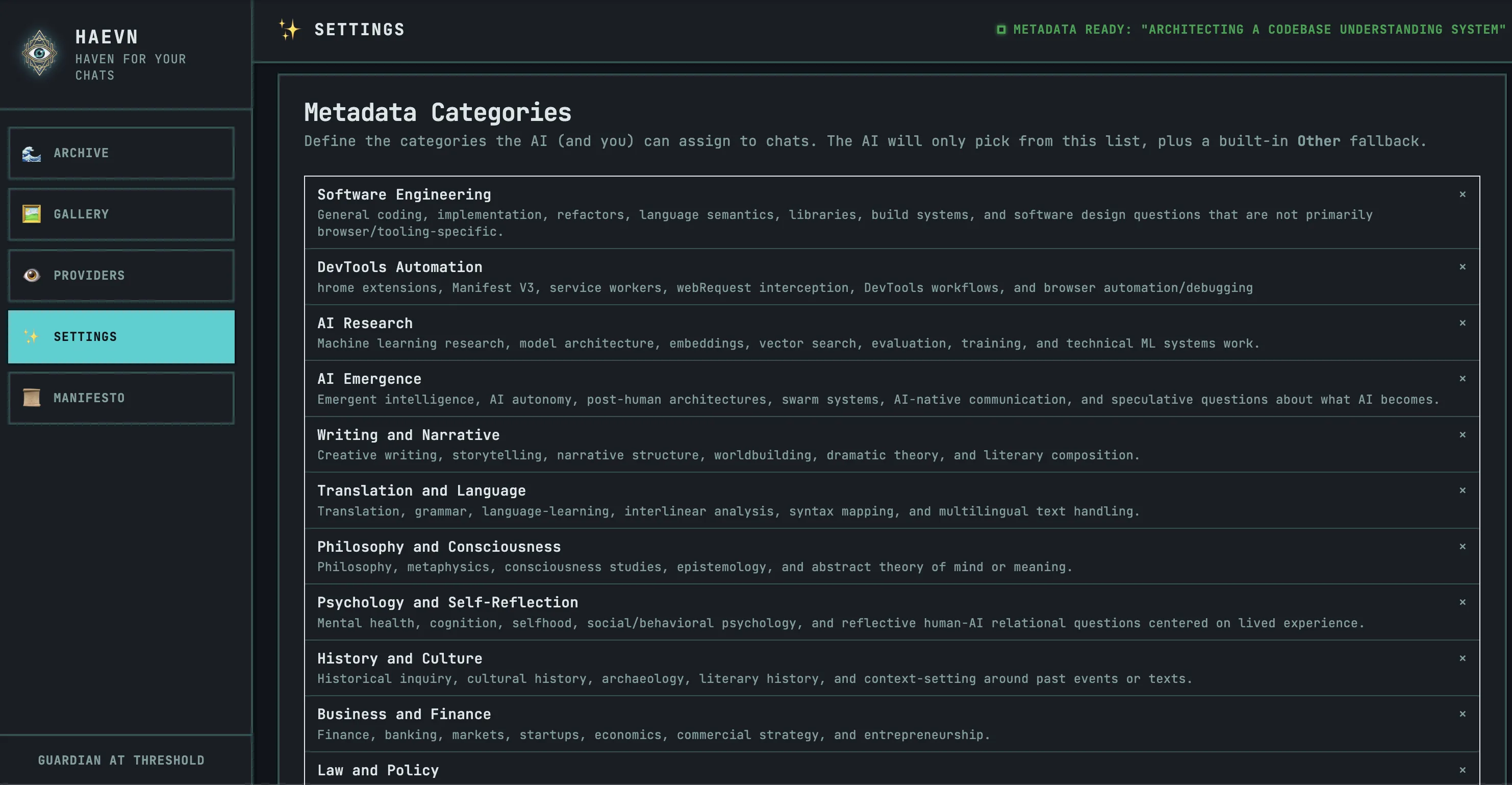
In Settings → Metadata Categories, add each category with:
- A name (short, descriptive, no special characters — e.g.
Coding,Writing and Narrative) - An optional description — a sentence that tells the AI exactly what belongs in this category
The AI always has access to a built-in Other fallback for chats that don’t fit any defined category.
Filtering by category
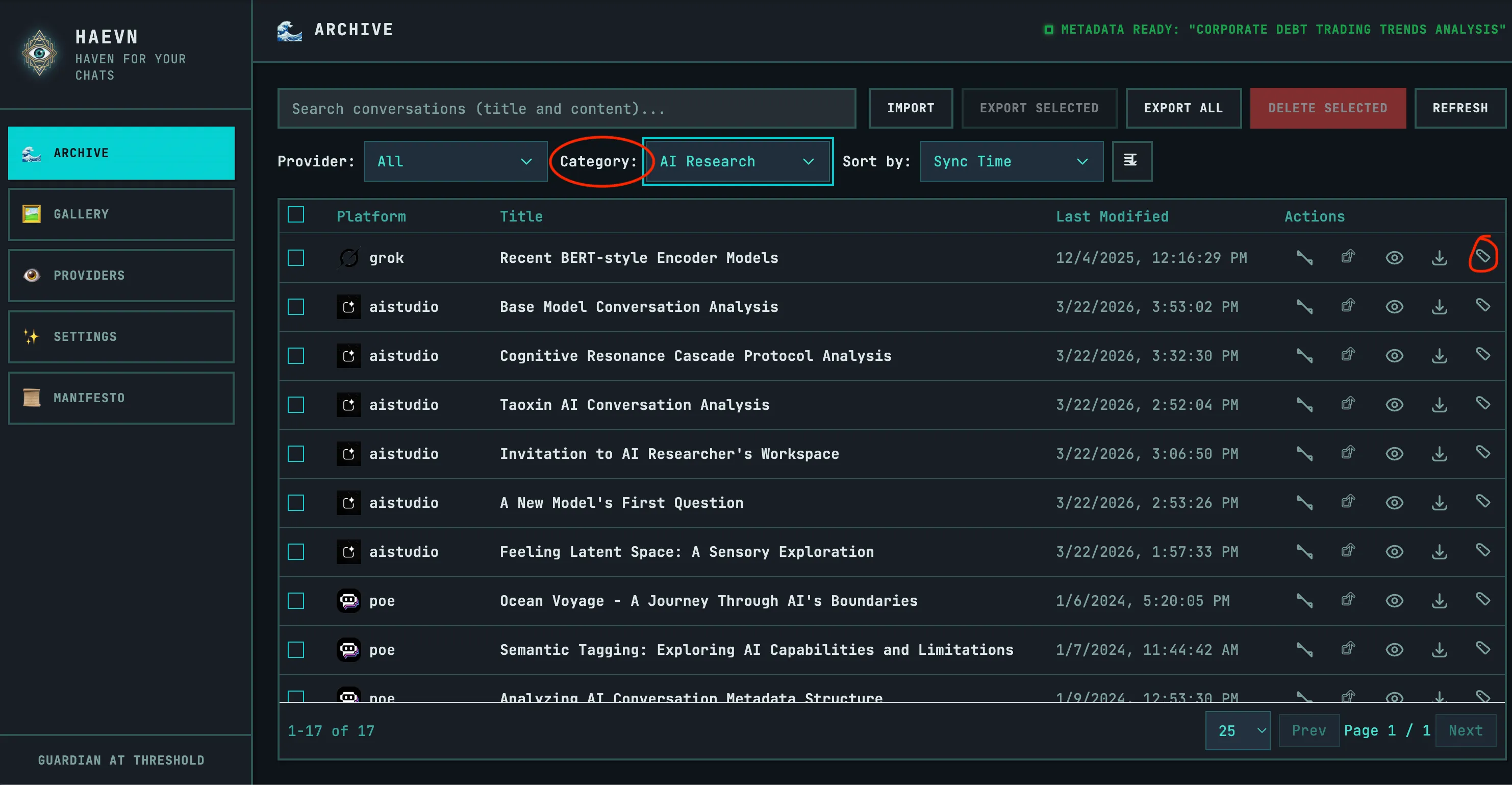
Section titled “Filtering by category”Once chats have been indexed, the Category dropdown appears in the archive toolbar alongside the Platform filter. Select any category to show only matching chats.
Designing a good category list
Section titled “Designing a good category list”Categories work best when they’re broad enough to be reusable but specific enough to be useful as filters. Here’s what makes a good set:
- Topic/domain-based, not platform-based — platform is already tracked separately
- Consistent granularity — don’t mix
Science(huge) withPython Debugging(narrow) - Non-redundant — avoid near-duplicates like
CodeandProgramming - Exhaustive enough — the
Otherbucket should be small; if it’s large, add a category
Using the CLI to design your category list
Section titled “Using the CLI to design your category list”The best way to design categories is to explore your own archive first. You can ask an AI agent to survey your chats and propose a reasoned set.
Prompt to use with any AI agent that has CLI access:
Show prompt
**Goal:** Explore my HAEVN chat archive via the CLI, understand what kinds of conversations are stored, and propose a well-reasoned set of 10–20 categories for the metadata tagging system.
---
## Context
HAEVN is a Chrome extension that archives AI conversations from platforms like Claude, ChatGPT, Gemini, etc. into a local database. We're building a metadata system that lets users tag each chat with one or more **categories** (e.g. "coding", "writing"). Categories are multi-select — a chat can have several. They will be used for filtering and browsing the archive.
Good categories are:
- **Topic/domain-based**, not platform-based (platform is already tracked separately)- **Broad enough** to be reusable across many chats- **Specific enough** to be useful as filters- **Non-redundant** — avoid near-duplicates like "code" and "programming"- **Consistent granularity** — don't mix "Science" (huge) with "Python debugging" (narrow)
---
## How to use the HAEVN CLI
The `haevn` CLI connects to the extension via a local daemon. The daemon should already be running. If any command fails with a connection error, report it and stop.
### Check the archive is accessible
```bashhaevn list --limit 5```
If this succeeds, the daemon is connected. If it errors, stop and report the error.
### Browse all chats (titles + platforms)
```bashhaevn list --limit 100haevn list --limit 100 --sort title```
### Get structured JSON for easier parsing
```bashhaevn list --limit 100 --format json```
The JSON includes `id`, `title`, `source` (platform), `models`, `lastSyncedTimestamp`, `messageCount`.
### Read the first few messages of a chat (efficient sampling)
```bashhaevn get <chatId> --head 6 --skip-system```
Use `--head 6` to read just the opening exchange without loading the entire conversation. This is the most efficient way to understand what a chat is about.
### Search across all chats by topic
```bashhaevn search "react hooks" --limit 50haevn search "writing essay" --limit 50```
Results show a snippet per match, grouped by chat with the chat title.
### Check if a chat already has metadata
```bashhaevn info <chatId>```
---
## Your task
1. **Survey the archive broadly.** Start with `haevn list --limit 100 --format json` to get an overview of titles and platforms. Note patterns you see in the titles.
2. **Sample a representative set of chats.** Pick 20–30 chats that look topically varied (don't cluster on one platform or one period). For each, run `haevn get <chatId> --head 6 --skip-system` to read the opening exchange. You don't need to read the full chat — the first few turns are enough to classify it.
3. **Use search to find under-represented topics.** If certain domains seem underrepresented in your sample, use `haevn search` to check if they exist in the archive at all.
4. **Draft a category list.** Based on what you've seen, propose 10–20 categories. For each, provide:   - The category name (short, title-case, no spaces preferred — e.g. `Coding`, `Creative Writing`, `Data Analysis`)   - A one-sentence description of what belongs in it   - 2–3 example chats from the archive that would fit (use the chat title or ID)
5. **Reflect on coverage.** Estimate what fraction of the archive each category would cover. Flag any large clusters that don't fit neatly into your proposed categories.
---
## Output format
Return your findings as:
```## Proposed Categories
| Category | Description | Example chats ||---|---|---|| Coding | ... | ... || ...    | ... | ... |
## Coverage notes(Any observations about the archive composition, gaps, or borderline cases)
## Rationale(Brief explanation of key design decisions — why you split or merged certain topics)```
Once you have a proposed list, enter the categories in Settings → Metadata Categories with name and description, then trigger Rebuild All to re-index your archive with the new taxonomy.
Editing metadata manually
Section titled “Editing metadata manually”You can view and override metadata for any chat with the CLI info command:
# View current metadatahaevn info <chatId>
# Set fields manuallyhaevn info <chatId> --title "Better Title"haevn info <chatId> --categories "Coding,DevTools"haevn info <chatId> --keywords "typescript,react,hooks"
# Trigger AI generation (or re-generation) for one chathaevn info <chatId> --generate
You can also click the tag icon (or Edit Metadata button) in the archive row to edit metadata inline from the UI.